Once upon a time there was a Mac utility called Mail Badger that would add extra badges to the Mail.app dock icon to show the unread count in other mailboxes of your choosing. I relied on this a lot–I filter my incoming mail aggressively, and there are some high-priority mailboxes that aren’t my inbox, so I want to know when there’s something to look at in them.
Eventually that went away and was replaced by the SmallCubed MailSuite. Eventually Apple made it impossible for that to keep working, so the developer wound up creating his own mail app entirely, but I didn’t really bond with that.
However, it is possible to obtain unread counts for arbitrary mailboxes through AppleScript, and I realized that TerminalWidget could provide me with an approximation of that.
Setup
- Run TerminalWidget if you’re not running it already.
- Create a widget and name it mailwidget.
- Copy the following script and save it as mailcounter.sh to
/usr/local/bin. - This script includes a configuration section where you list the mailboxes you want to include and how you want their names to be displayed in the widget.
- I like using emoji as mailbox names to keep things compact. I ran into an edge case with these, and found that for emoji to display in the widget correctly, you need to go to System Settings/Desktop & Dock, and set Dim widgets on desktop to Never.
- The Inbox is special, and can be identified only as Inbox, but for other mailboxes, you need to give the account name and path, as shown in the example configuration below.
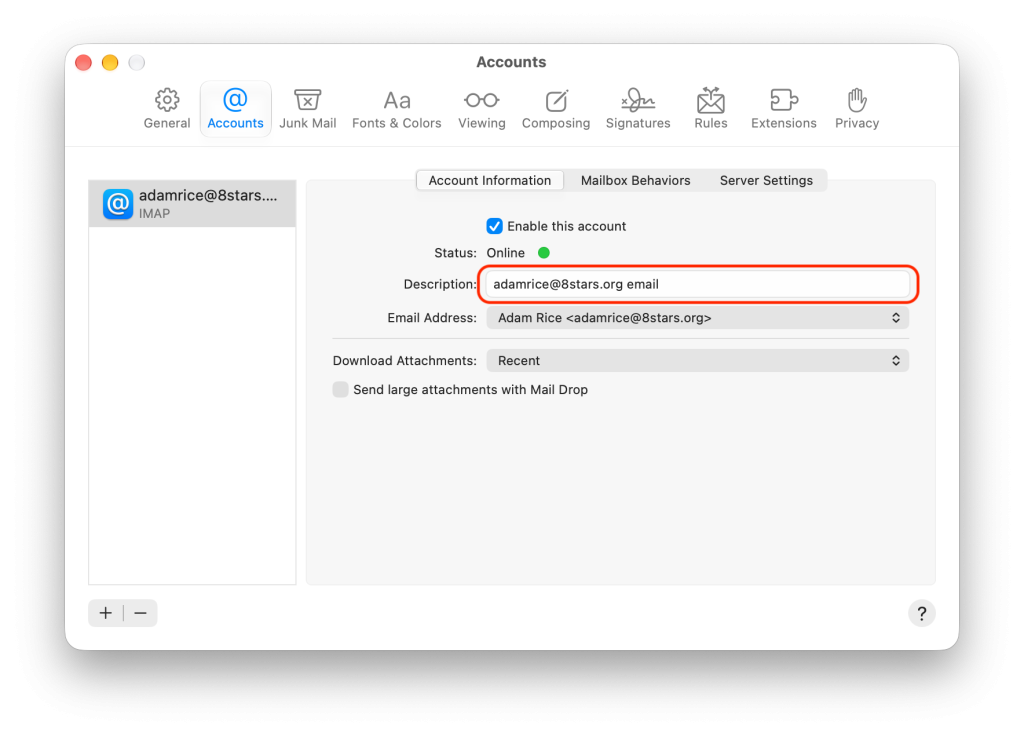
- To enter your account name, open Mail’s settings, click the Accounts tab, and click on the account in question. Use the exact text shown in the Description field.
- You can play around with the values for the `--fg` and `--bg` flags to change the foreground and background colors as you see fit. Or anything else, if you know what you're doing.
#!/bin/zsh

# ==========================================
# CONFIGURATION SECTION
# Format: "Mailbox Path, Display Name"
# Combined inbox is special, and can be referred to as "Inbox",
# but other mailboxes need your account name preceding the mailbox path
# ==========================================
MAILBOXES=(
    "Inbox,📭"
    "myname@email.com email/Family,Fam"
    "myname@email.com email/Work/Felcher account,Felcher"
)
# ==========================================

if command -v terminal-widget >/dev/null 2>&1; then
    TW_CMD="terminal-widget"
elif [[ -x "/usr/local/bin/terminal-widget" ]]; then
    TW_CMD="/usr/local/bin/terminal-widget"
elif [[ -x "$HOME/bin/terminal-widget" ]]; then
    TW_CMD="$HOME/bin/terminal-widget"
elif [[ -x "/opt/homebrew/bin/terminal-widget" ]]; then
    TW_CMD="/opt/homebrew/bin/terminal-widget"
else
    echo "Error: terminal-widget CLI not found."
    exit 1
fi

csv_output=""
message_count=0

for line in "${MAILBOXES[@]}"; do
    mailbox=$(echo "$line" | awk -F',' '{print $1}' | xargs)
    display_name=$(echo "$line" | awk -F',' '{print $2}' | xargs)

    [[ -z "$display_name" ]] && display_name="${mailbox##*/}"
    [[ -z "$mailbox" ]] && continue

    unread_count=$(osascript \
        -e "tell application \"Mail\"" \
        -e "set defaultDelimiters to AppleScript's text item delimiters" \
        -e "set fullPath to \"$mailbox\"" \
        -e "set resultCount to \"Not Found\"" \
        -e "if fullPath is \"INBOX\" or fullPath is \"Inbox\" then" \
        -e "set resultCount to unread count of inbox" \
        -e "else if fullPath contains \"/\" then" \
        -e "set AppleScript's text item delimiters to \"/\"" \
        -e "set acctName to text item 1 of fullPath" \
        -e "set boxPath to text items 2 thru -1 of fullPath as string" \
        -e "if exists account acctName then" \
        -e "if boxPath is \"INBOX\" or boxPath is \"Inbox\" then" \
        -e "set resultCount to unread count of (mailbox \"INBOX\" of account acctName)" \
        -e "else if exists mailbox boxPath of account acctName then" \
        -e "set resultCount to unread count of (mailbox boxPath of account acctName)" \
        -e "end if" \
        -e "end if" \
        -e "else if exists mailbox fullPath then" \
        -e "set resultCount to unread count of fullPath" \
        -e "end if" \
        -e "set AppleScript's text item delimiters to defaultDelimiters" \
        -e "return resultCount" \
        -e "end tell")

    [[ "$unread_count" == "0" || "$unread_count" == "Not Found" ]] && continue

    csv_output+="$display_name,$unread_count"$'\n'
    ((message_count++))
done

if [[ $message_count -gt 0 ]]; then
    echo "$csv_output" | "$TW_CMD" --target mailwidget --table - --grid horizontal --no-header --table-layout fill --fg "#999999" --bg "#333333" --fit-text
else
    echo "No unread messages" | "$TW_CMD" --target mailwidget --text - --fg "#999999" --bg "#333333" --font-size 16
fi
- Make the new script executable:
chmod +x mailcounter.sh - Make sure /usr/local/bin is in your $PATH:
echo -e ${PATH//:/\\n}. If it is not there, edit either your .bash_profile or .zshrc and add the line:export PATH=$PATH:/usr/local/bin
Triggers
In a perfect world, this script would be run A. whenever you receive new mail, and B. whenever the read state of a message in one of your listed mailboxes changes. Unfortunately, we do not live in that world. There are three ways we can trigger the script, and these get us pretty close. The script has little enough overhead that you can do all three.
- Whenever new mail is received;
- Whenever Mail.app becomes inactive;
- On a regular interval.
Whenever new mail is received
- Open Script Editor and paste in the following:
using terms from application "Mail"
    on perform mail action with messages theMessages for rule theRule
        do shell script "/bin/zsh /usr/local/bin/mailcounter.sh"
    end perform mail action with messages
end using terms from
- Save this as
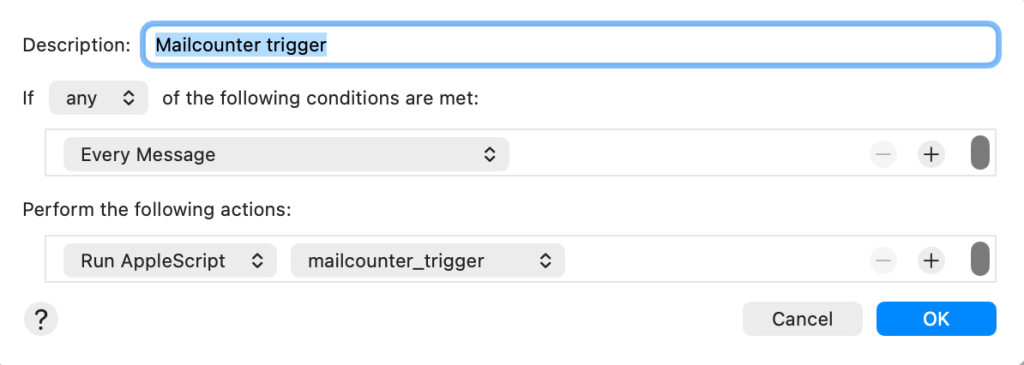
mailcounter_trigger.scptto~/Library/Application Scripts/com.apple.mail - Go into Mail.app settings, click the Rules tab, and create a new rule as shown below.
- Now, go into System Settings and click on Privacy & Security, then Full Disk Access. Enabled this for Mail. You will need to quit and restart mail. This step is needed to allow the script to run.
Whenever Mail.app becomes inactive
This doesn’t let us update read counts on a live basis, but it’s the next best thing. This will activate when you click away from Mail. There may be more than one way to do this, but the way I’ve found is using BetterTouchTool, an amazing utility that I recommend. The interface is a little confusing at first, and it has capabilities you’ll probably never make use of, but it’s very worthwhile.
- Open the BTT Configuration window.
- Click on the Automations & Named & Other Triggers tab, which appears in the horizontal tab bar as “traffic light” buttons.
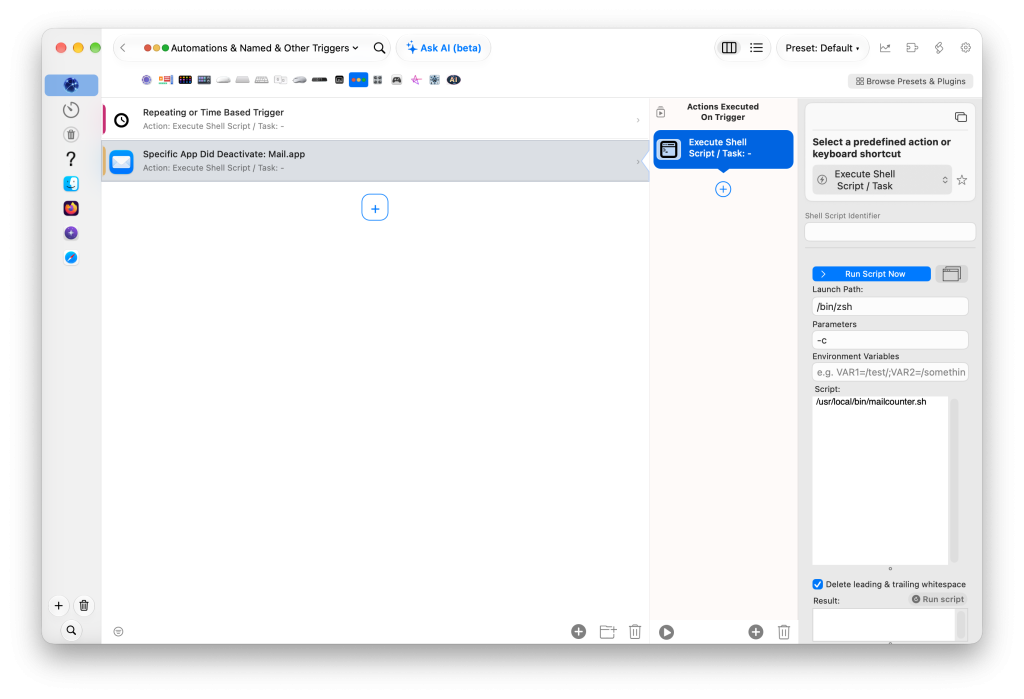
- Add a new trigger by clicking the big “+” in the left column and choose Specific App Did Deactivate (the search box helps—there are a lot of triggers).
- Select Mail as the specific app in the rightmost column. Leave the other trigger options alone.
- In the second-rightmost column, under Action executed on trigger, select Execute Shell Script/Task (again, there’s a search box that will speed things up here), then in the rightmost column, enter “/usr/local/bin/mailcounter.sh” in the Script: field.
On a regular interval
There are numerous desktop apps that can perform cron-like duties. Lingon, Keyboard Maestro, and the aforementioned BetterTouchTool. Or you can run with the big dogs and create a launchd agent, and if you’re doing that, you can tell me all the mistakes I’ve made here.
I’m already using BTT, so I’m using that here too. I’ve set my interval to every five minutes.
- Again in the Automations & Named & Other Triggers tab, create a new Repeating or Time Based Trigger and set your interval to whatever you want. BTT measures everything in seconds, so I use 300.
- The action taken is identical to the previous one: executing the script.